You worked through heavy squats and deadlifts with long rests, but WHOOP showed less Strain than it did after a half-hour run. This can happen because heart rate during strength training does not stay elevated continuously as it does during cardio, and the activity-logging method also changes the detail available to the system.[1][2]
One misconception needs clearing up first: Weightlifting in the current WHOOP system is no longer necessarily based only on cardiovascular load. Many strength-activity types automatically receive an estimated muscular load based on activity type and duration, while Strength Trainer or linking exercises afterward gives the system information about exercises, sets, reps, and weight.[1][2][9]
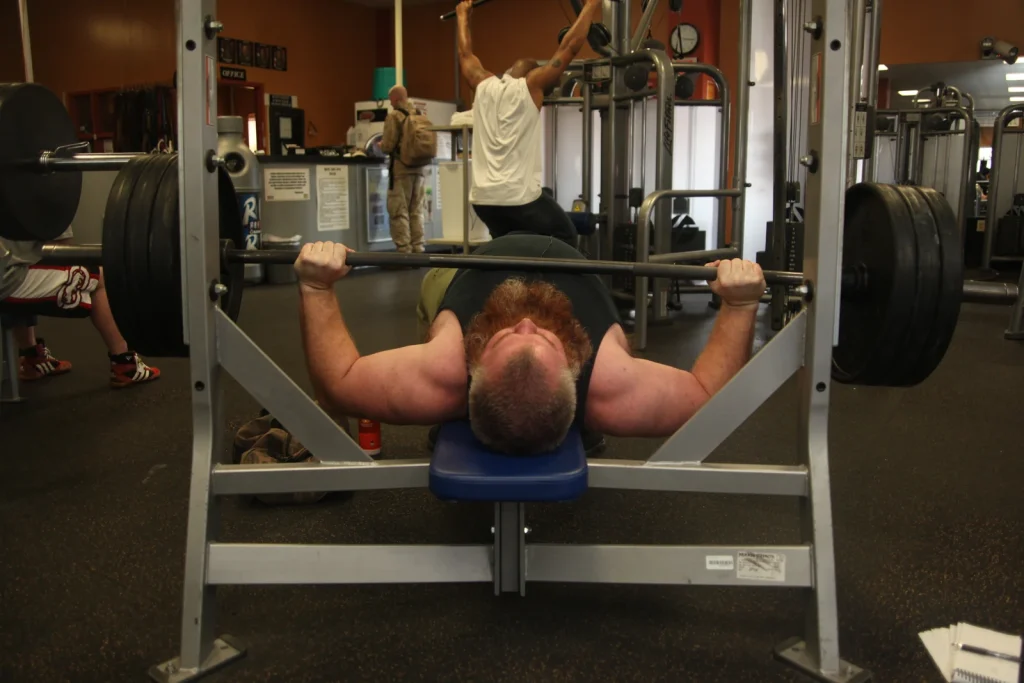
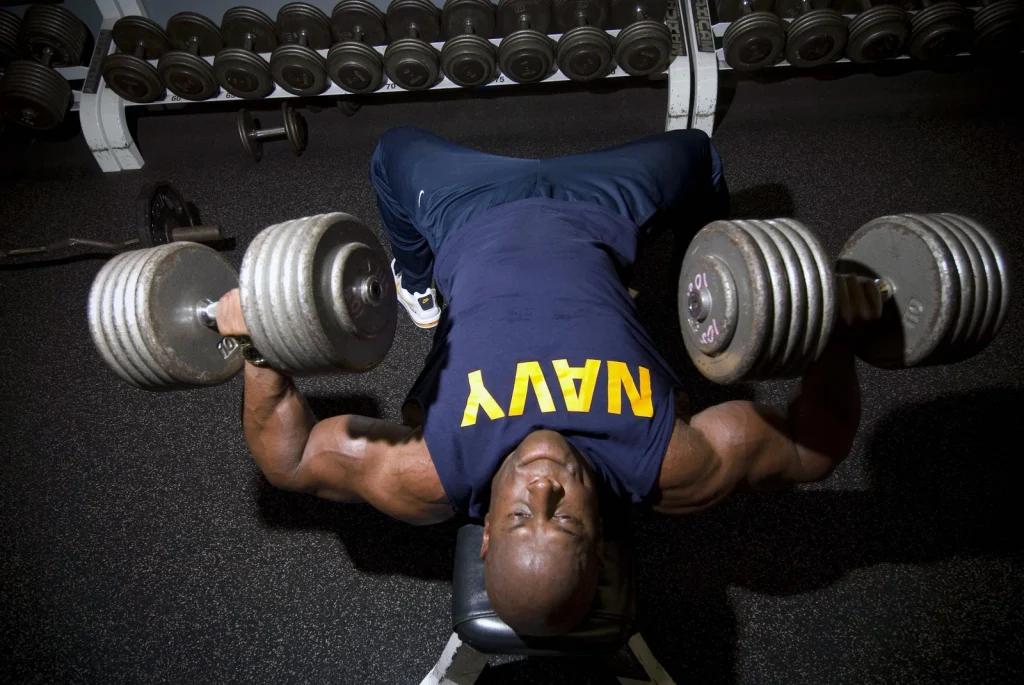
This guide is based on WHOOP documentation checked on October 21, 2026. It is not LUXE MORE testing. All images provide training and equipment context; they are not app tutorials, do not endorse lifting form, and contain no personal health data from customers or the store owner.

Low Strain does not mean the strength workout had no value
WHOOP Strain is a personalized score from 0 to 21 that rises nonlinearly. The system combines cardiovascular load and muscular load into one score. A higher heart rate sustained for longer increases cardiovascular load, while resistance work requires more context about movement, volume, and intensity.[2]
Heavy lifting with short work periods and long rests between sets may not produce the same heart-rate pattern as continuous running. If an activity contains only its type and duration, the system must estimate muscular load from broad information, so one post-workout number should not be used to judge whether a program is good or bad.[2][9]
Next-day soreness is not a score-validation measure either. A lack of soreness does not mean the training was ineffective, and severe soreness does not prove the session was better. Strain reflects the load calculated from the data available to the system; it does not directly measure muscle growth, strength, lifting technique, or tissue damage.[2][9]
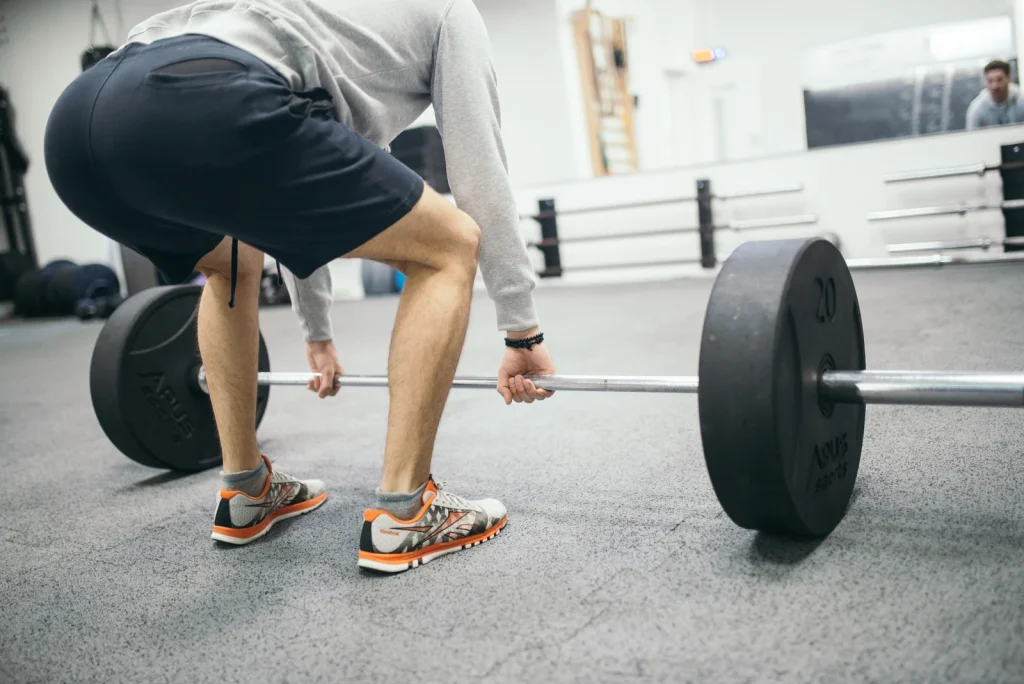
Read Strain as load context, not an exam score. A higher number does not necessarily mean better training.
Three ways to log strength training, based on the data you need
Strength trainees have three main options; Strength Trainer does not have to be run live every time. The right method depends on whether you only want to record that you trained, add exercise context later, or capture set-level details from the start.[1][2][9]
Three workflows from current documentation. The stated levels of detail are WHOOP’s description, not independent validation.[1][2][9]
| Method | What you do | Data available to WHOOP | Best suited to |
|---|---|---|---|
| Start a regular Weightlifting activity | Select the activity type and record the duration | Cardiovascular load plus estimated muscular load from activity type and duration | A rushed day, or a day when you first want to preserve the activity record |
| Add exercises after training | Open the recorded activity, select Calculate Muscular Load, and follow the steps | Adds the exercises performed, muscle groups, and the exercises’ general demands | A day you can remember but do not want to touch your phone between sets |
| Log live in Strength Trainer | Prepare a workout, then enter exercises, sets, reps, and weight while training | Set-level detail, plus heart-rate and wrist-motion data | A day when you want to track volume, exercise history, or several weight changes |
The first option does not mean WHOOP sees only cardiovascular work. An FAQ answer in part of an older WHOOP article still says Weightlifting counts only cardiovascular Strain, but that conflicts with the current Support pages and several current explanations of muscular load, which state that muscular load is now estimated automatically.[1][2][8][9]
The real difference is granularity. An estimate based on time does not know which exercises you performed, how often you changed weight, or how demanding each set was. If those details matter when reviewing training, adding exercises or logging live provides more context.
Before starting, check the device, membership, and wear location
Strength Trainer is available with WHOOP One, Peak, and Life memberships, and WHOOP states that it supports devices from 4.0 onward. The feature is available from 0 Recoveries, so you do not need to wait for the system to accumulate several days of Recovery data before opening it.[3][7][10]
When using Strength Trainer, the WHOOP sensor must be worn on the wrist because the algorithm relies on movement from that location. Current documentation says WHOOP Body is not supported. Although upper-arm wear works for some activities, it should not replace wrist placement in this mode.[1][8]
The band should remain in its normal usable position without shifting while you lift, but this article does not claim that any band type raises Strain or makes muscular-load measurement more accurate.
Start Strength Trainer through the verified current menu
The main path in the Support page dated May 21, 2026 starts on Home: tap the action (+) button and select Strength Trainer. Then choose WHOOP Workouts for programs included in the app, or My Workouts for your own programs.[1]
To create a new program, select Create New Workout, name it, add exercises or supersets, and tap the (i) icon when you want exercise details. When the list is ready, select Start Workout.[1]
Menu names may shift with app versions or phased feature rollouts. Another WHOOP article describes access from the action button or the Plan tab under Overview, but this guide follows the newer Support page because it gives clearer step-by-step instructions.[1][8]

The short path before lifting
Home → (+) → Strength Trainer → WHOOP Workouts or My Workouts → Create New Workout if you want to build your own → add exercises and sets → Start Workout
This guide does not invent names for the buttons that start or stop each set, specify where to edit a completed set, or create simulated screenshots, because the current documentation checked does not fully confirm those details.
If every word on your screen does not match, follow the feature names and workflow first. Do not guess buttons from old images or videos.
Log live without turning the gym into paperwork
The lightest approach is to prepare the workout before lifting. Enter the main exercises, their order, and the set structure in advance. At the gym, change only values that actually differ, such as weight or reps. This reduces exercise-name searches during rest periods and helps prevent the final sets from being forgotten.
WHOOP says the workout screen shows Timer, Heart Rate & Zones , and set, rep, and weight details. Isometric and cardio-based exercises also support set duration. The Support page does not list the names of the per-set timing buttons, so follow the text shown in the app on your device.[1]
To reuse the program the next week, tap the three-dot menu beside the workout in My Workouts and select Copy Workout. You can rename it, adjust reps or weight, add or remove exercises, and save it as a new custom workout. This describes editing a template before training; it is not evidence that every field can be changed after processing.[1]
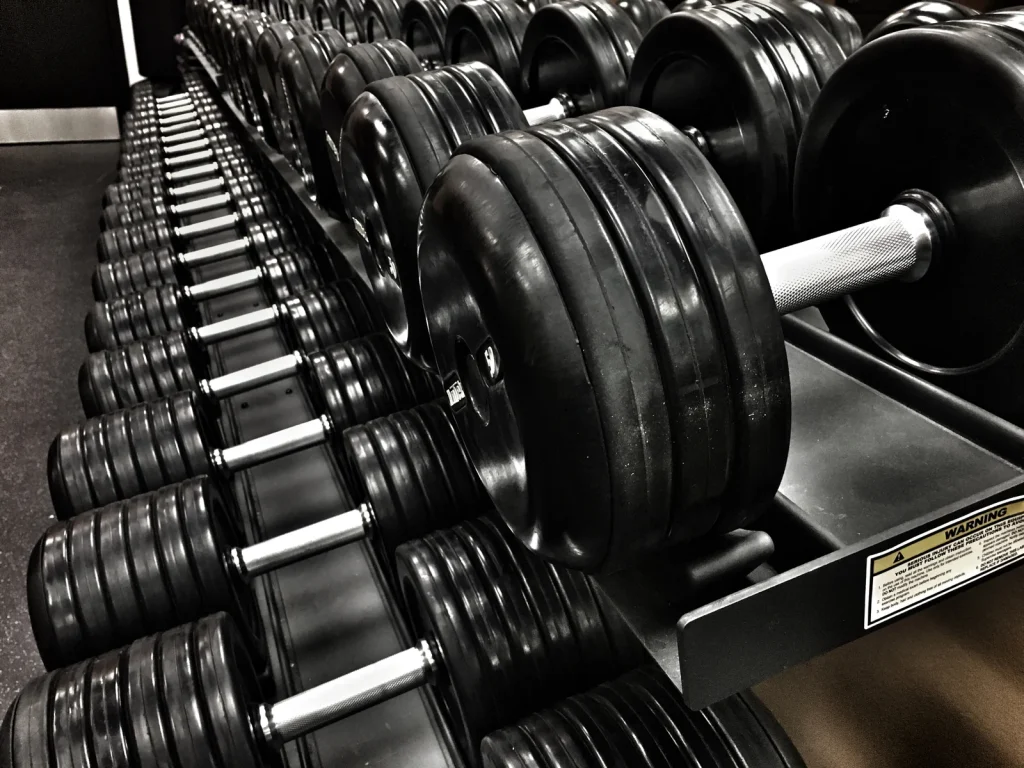
Workflow 1: a regular program
Create a workout template once. Before entering the gym, check the exercise order and units. During training, change only the reps and weight actually completed. Afterward, confirm that every set is present before ending the activity.
Workflow 2: an improvised training day
Start Weightlifting to capture time and estimated muscular load first. If you remember the details, open the activity after training and use Calculate Muscular Load. This suits days when equipment is unavailable or the plan keeps changing.
Workflow 3: a day for serious load tracking
Run Strength Trainer live, prepare the main exercises in advance, and record every set as performed. This method suits days when exercise history and Total Volume Load matter more than pushing Strain higher.
Missing exercises, bodyweight, and unilateral moves: do not invent rules
If you cannot find an exercise name, the Support page says you can select Add Custom Exercise and still receive a Muscular Load calculation. However, Progress data such as PR, Exercise History, and Total Volume Load is described for supported exercises, so a custom exercise should not be guaranteed to have the same history or supporting data as an exercise in the library.[1]
The exercise library can be filtered by Movement Type, Equipment Used, and Targeted Muscles, including a Bodyweight filter. WHOOP says its internal validation included bodyweight exercises, but it does not set a current rule that every bodyweight exercise must be entered as 0 kilograms or any other single value.[1][10]
Unilateral exercises have a similar limitation. WHOOP says it improved one-arm movement detection and muscular-load estimation, but it does not publish a universal rule requiring dumbbell weight to be entered per side or as a combined total for every exercise. Choose the exercise name that matches what you did, read the description under the (i) icon, and enter values in the fields shown by the app without inventing a rule.[1]
Units can be switched between lbs and kg in Profile Settings. Set the correct unit before starting a program, especially when copying an old workout, because a correct number paired with the wrong unit makes the history nearly as difficult to read as a missing set.[1]

Exercise names, single-dumbbell weight, and bodyweight rules vary by exercise. If the documentation does not specify a rule, do not apply 0 kg or combined weight to every case.
Forgot to start Strength Trainer? You can still add information later
If you already recorded a Weightlifting activity, open the processed activity, look for Calculate Muscular Load, and follow the steps to link the exercises performed. The Support page lists compatibility with Powerlifting, Weightlifting, Functional Fitness, Box Fitness, and Strength Trainer.[1]
Adding exercises afterward gives WHOOP more information about muscle groups and movement patterns, but it is still not the same as capturing movement, velocity, and work timing during a live session. WHOOP therefore describes live logging as the more detailed method. All of this is the manufacturer’s description, not store testing.[1][2][9]
If an activity’s start or end time is wrong, a regular activity can be opened through the three-dot menu and corrected under Edit. According to the Support page, the time window of an activity linked to Strength Trainer cannot be edited; it must be deleted and recreated with the correct information.[4]

After training, what should you check before Strain?
Activity Details divides Total Strain into cardiovascular and muscular portions and shows Performance Summary, Tonnage, Load, Reps & Sets, Intensity, and Exercise Type according to the logged data. Progress in Strength Trainer shows PR, Exercise History, Total Volume Load trends, and past performance for supported exercises.[1]
A useful review order is to check whether all exercises are present, sets and reps match, and weight and units are correct. Then look at the balance between muscular and cardiovascular load. If the source data is incomplete, interpreting a decimal score more precisely will not make the training history complete.
Day Strain is total load across the day, while Activity Strain isolates an activity period. Do not add several activity scores directly to predict Day Strain, because the scale is nonlinear and WHOOP does not publish the score-combination equation.[2]
Use trends to ask questions: Did the same program take longer because rests increased? Did total weight change because you added sets or changed exercises? Do not use a PR or Strain as proof of correct form, muscle growth, or a need to add weight immediately.
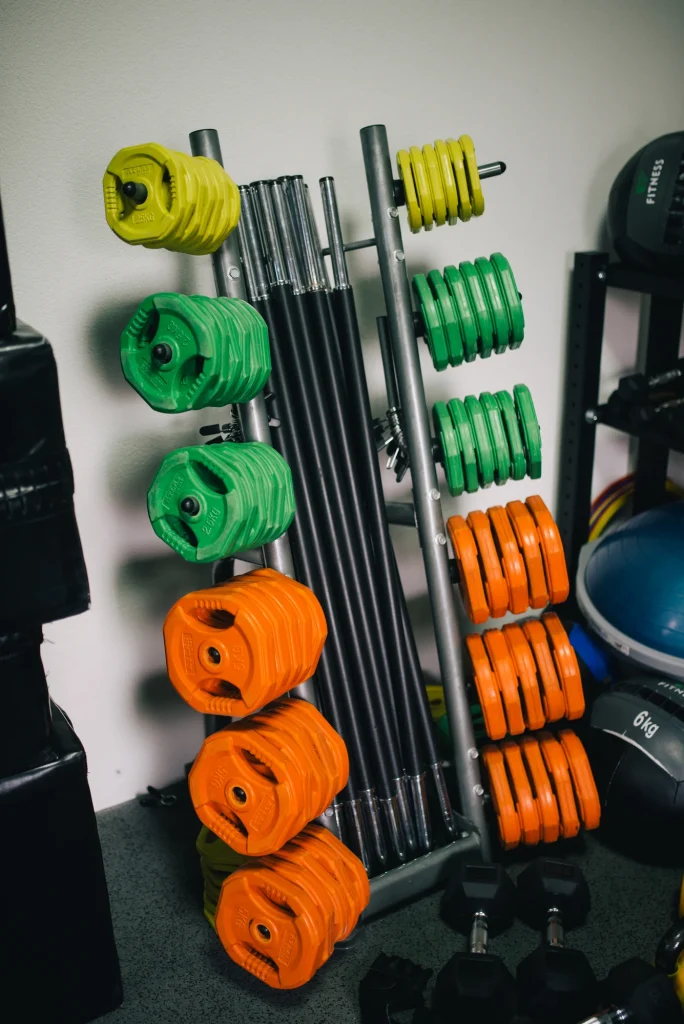
Apple Health and Strava can transfer activities, but neither replaces a set log
Apple Health can import workouts, including strength training, with activity-level data such as routes, calories, distance, and heart rate for some activities. Imported entries can be edited in WHOOP within 30 days, and when one overlaps an activity automatically detected by WHOOP, the imported entry may replace the original time window and activity type.[5]
The documentation does not confirm that Apple Watch transfers exercise names, sets, reps, weight, or Strength Trainer history in full. It also does not say that Apple Watch can replace a wrist-worn WHOOP sensor for Strength Trainer motion tracking.[1][5]
Subject to the applicable conditions, Strava can send and receive data such as activity type, duration, calories, heart rate, Activity Strain, Recovery, and GPS. The WHOOP data list does not include set, rep, or weight details. If a workout is linked to Strength Trainer after it has been posted to Strava, the Support page says the existing post will not update retroactively.[6]
If several integrations are enabled and duplicate activities appear, identify the source app and disable unnecessary workout writing before correcting the data. Do not delete entries broadly until you know which one is the original.
Checklist before leaving the gym
Before ending the activity, take a moment to confirm that WHOOP is on your wrist, the selected exercises match what you did, sets and reps are complete, weights and units are not mixed up, and no exercise from the end of the session is missing. If you forgot live logging, add exercises later through Calculate Muscular Load rather than reconstructing unrealistically precise numbers from memory.
After training, read the score together with the logging method. Compare a day based only on estimated muscular load cautiously with a day on which every set was entered, and do not use soreness to confirm that a score should be high or low.
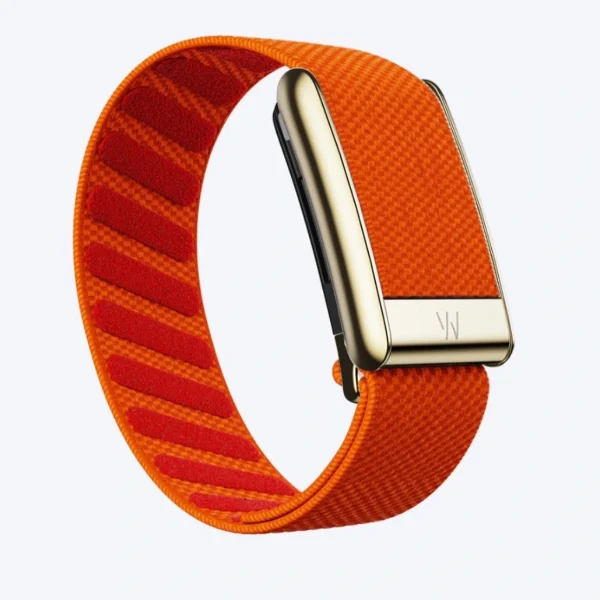
The image below shows the Red band from the LUXE MORE gallery as context for choosing bands and accessories. It is not store testing of Strength Trainer, does not show WHOOP being worn, and does not claim that the band improves Strain, accuracy, or training performance.[11]
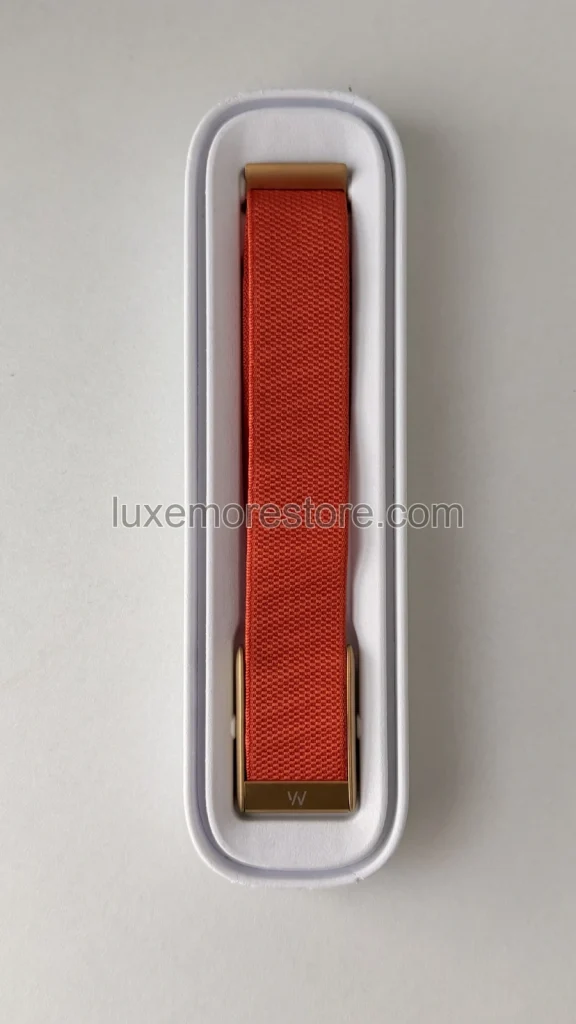
LUXE MORE is an independent third-party retailer and is not affiliated with, endorsed by, sponsored by, or an authorized reseller of WHOOP. WHOOP is a trademark of its respective owner.
Low Strain does not prove the weights were light, and high Strain does not prove the program was better. Strength Trainer only adds detail about the recorded work for the system to use in its calculation.
Common questions
If I only start Weightlifting, does WHOOP still count muscular load?
It estimates muscular load for supported activities. The current system uses activity type and duration to create estimated muscular load, so it is not cardiovascular-only, but it does not know exercise- and set-level details as well as linked exercises or live logging.[1][2][9]
Do I need to wait several days for WHOOP to calibrate before using Strength Trainer?
No. The Calibration Timeline says Strength Trainer is available from 0 Recoveries. WHOOP continues learning baselines and limits from your history, but the documentation does not specify a minimum number of workouts required for learning to be complete.[7][9]
Can I wear WHOOP on my upper arm or in WHOOP Body while using Strength Trainer?
You should not. Strength Trainer adapts tracking to wrist movement, and the Support page says WHOOP Body is not supported in this mode. Move the sensor to your wrist before starting.[1][8]
Must every bodyweight exercise be entered as 0 kg?
The current documentation checked provides no universal rule of that kind. It only provides a Bodyweight filter and says bodyweight exercises were included in WHOOP’s internal validation. Select the exercise and use the fields shown by the app; do not assume 0 kg for every exercise.[1][10]
For a single dumbbell, should I enter the weight per side or the combined weight?
Do not create your own rule, because the documentation checked does not confirm one format for every exercise. Choose the matching exercise name, read the details under the (i) icon, and use the fields the app provides. If no name matches, use Add Custom Exercise while recognizing that custom-exercise history may not equal that of a supported exercise.[1]
If Strain is low and I am not sore, was the workout ineffective?
That conclusion cannot be drawn. Strain reflects cardiovascular and muscular load based on the data available to the system, while soreness is not listed in the documentation as an input to the score. Neither directly proves muscle growth, strength, or technical quality.[2][9]
Read next
- How to read WHOOP Strain, Recovery, and HRV separately
- Your first 7 days with WHOOP
- How to wear WHOOP with the right fit and position
- Choose a WHOOP One, Peak, or Life membership
Sources and images
Information checked on October 21, 2026
- WHOOP Support: Track Muscular Load with Strength TrainerGuidance updated May 21, 2026, used to confirm menu names, workout startup, Calculate Muscular Load, custom exercises, units, wrist placement, and post-workout data.
- WHOOP Support: WHOOP StrainExplanation updated March 6, 2026, covering the 0–21 scale, cardiovascular and muscular load, and estimated muscular load based on activity type and duration.
- WHOOP Support: Membership PricingUsed to confirm that Strength Trainer and HR Zones are included with One, Peak, and Life memberships. Pricing and hardware may vary by region.
- WHOOP Support: Strain and Recovery Details ScreensUsed to confirm activity-time editing and the limitations for activities linked to Strength Trainer.
- WHOOP Support: Apple Health IntegrationDescribes workout data transferred, editing imported entries within 30 days, and behavior when activities overlap; it does not confirm transfer of set details.
- WHOOP Support: Strava IntegrationDescribes activity-level data transferred and confirms that an existing Strava post does not update retroactively after Strength Trainer is linked.
- WHOOP Support: Calibration TimelineUsed to confirm that Strength Trainer and Day Strain are available from 0 Recoveries.
- WHOOP: Strength Trainer — Quantify Muscular Load for Smarter TrainingManufacturer article dated May 20, 2026, used to confirm wrist placement and adding exercises later. Its cardio-only Weightlifting FAQ conflicts with several current documentation pages, so it is not used to describe automatic estimation.
- WHOOP: How WHOOP Measures Muscular LoadManufacturer explanation dated April 23, 2026, distinguishing automatic estimates, linked exercises, and live Strength Trainer, including the limits of duration-based estimation.
- WHOOP: The Science of Muscular Load at WHOOPManufacturer explanation of development and supported devices, used only for feature scope and the combination of volume and intensity; internal validation is not treated as an accuracy guarantee.
- LUXE MORE: Red SuperKnit Luxe Band with Gold HardwareStore product page and authentic gallery image, used only as band context and not as evidence of increased Strain or training performance.