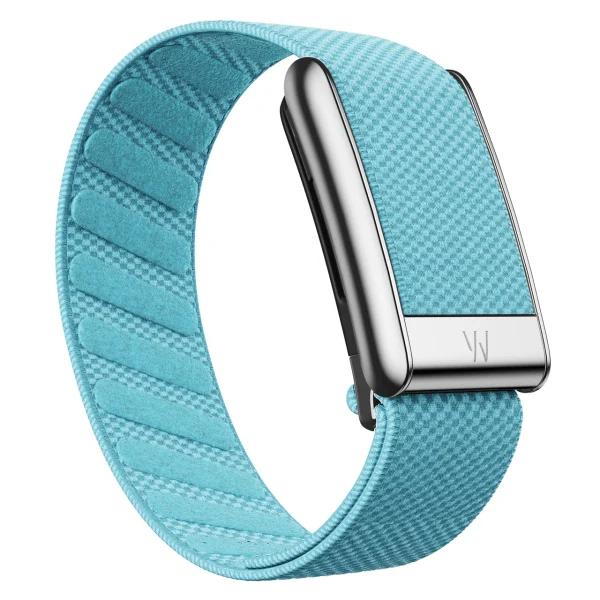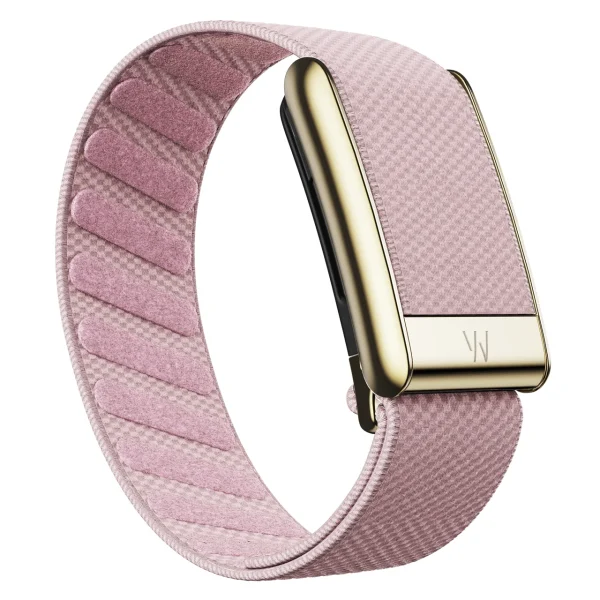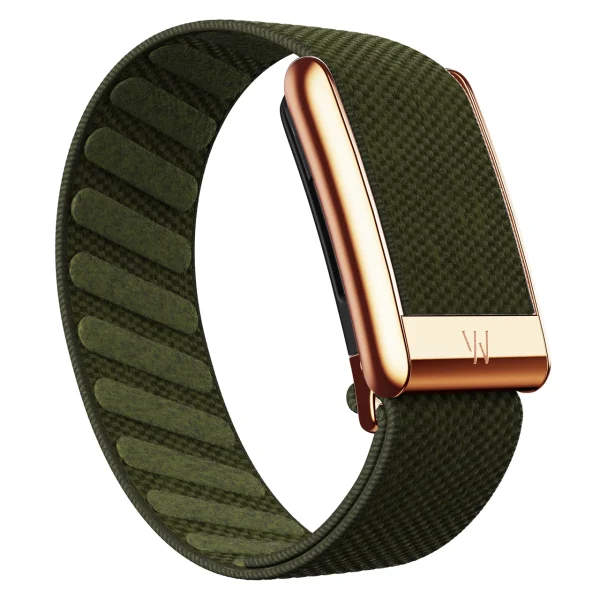
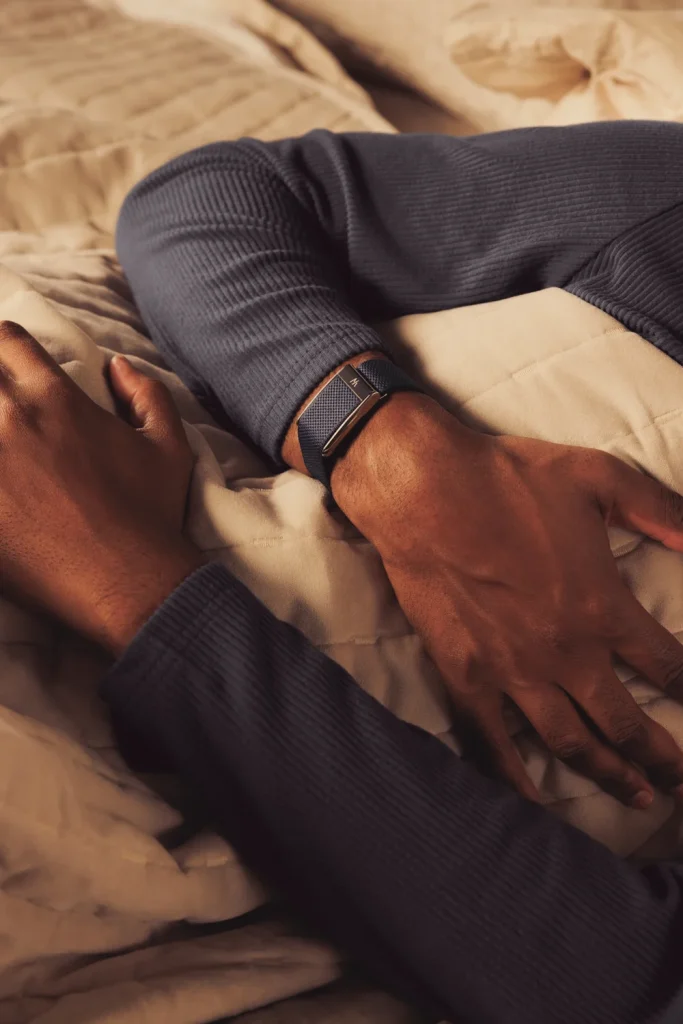
WHOOP worn during sleep. Photograph from WHOOP’s press imagery.
Start by letting the app sync up to the present, then check last night’s Sleep entry. If you are awake and see Process Now, you can try processing it. If there is no entry, add the actual sleep times or correct an inaccurate entry first. A low Strain value is different from a ring with no data: Strain accumulates with activity throughout the day.[1][2][5]
1. Blank rings, stale data or just low Strain?
Identify the symptom before changing anything. If the home screen shows yesterday’s data and there is no entry for last night’s Sleep, check sleep recording. If you see Catching Up or syncing stopped before you woke, address syncing first. But if Sleep and Recovery are present and only Strain is low, that alone does not establish a device fault.[1][5][8]
WHOOP uses a Sleep-to-Sleep cycle. It does not generate a new Recovery score simply because midnight has passed. A session recorded as a Nap does not create a new Recovery score either.[3]
2. If WHOOP says Catching Up, let syncing finish
Enable Bluetooth and connect to the internet. Keep your phone near WHOOP and open the app to check device status. If data is still catching up, leave the app open or let it run in the background. Repeatedly swiping the app closed can stop background syncing.[1]
If the device is connected but syncing has stalled, try closing and reopening the app once, then let syncing continue. WHOOP gives an example in which one day of backlogged data may take up to an hour to sync, depending on the connection. That is not a waiting period everyone must observe after waking.[1]
If this happens often, check your phone’s battery restrictions too. On iPhone, check that Background App Refresh is enabled for WHOOP. On Android, check whether the app’s background activity is restricted or battery-saving settings are limiting it.[1]
3. Synced, but Sleep is missing: what next?
Open last night’s activity list first. If Sleep is missing, tap the + icon in the app, choose Sleep, enter the actual start and end times, then tap Save. If an entry already exists but its times are wrong, open it and choose Edit rather than creating a duplicate.[2]
If your main sleep was recorded as a Nap, open that entry, use the three-dot menu, select Convert to Sleep and confirm. If sleep was split into Sleep and Nap and a Merge Sleep prompt appears, check that the times match your actual sleep before merging.[3][8]
WHOOP may also have detected that you woke but still be checking whether you are fully awake, in which case Process Now can appear. If you are awake and see that button, you can try processing the session. A missing score does not mean you need to add a new sleep entry every time.[2]
If the app flags an activity that overlaps sleep, check the times on the entry it identifies and correct them. Do not delete other activities just in case: the issue may be the start or end time of a single entry.[3]
Check the sleep entry, not just the rings
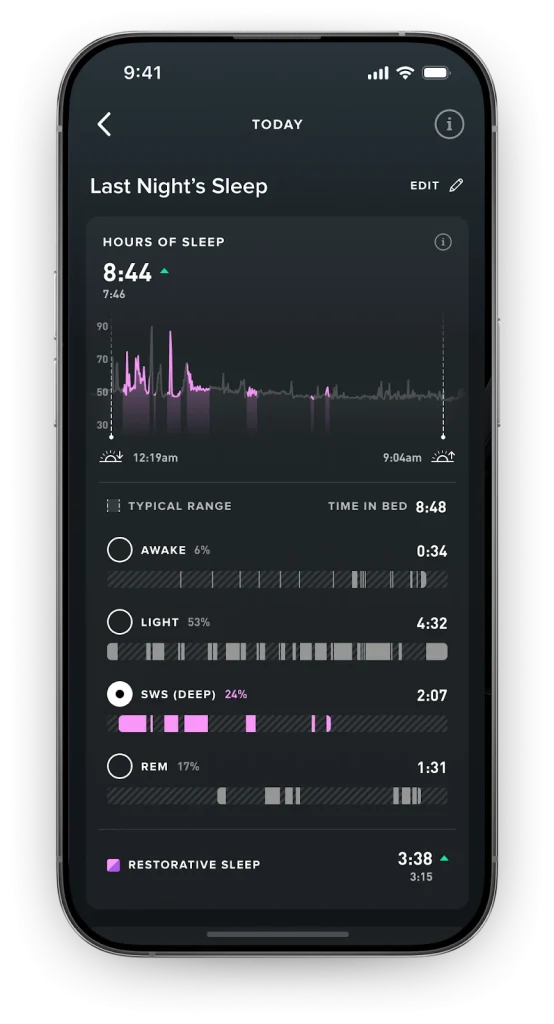
Open last night’s sleep and check its start/end times and heart-rate graph before adding or editing an entry.
4. Sleep is there, but Recovery is still missing
Having a Sleep entry does not always mean WHOOP has enough data to calculate Recovery. WHOOP says it will not generate a Recovery score if less than 85% of sleep data was captured. For example, the battery may have died overnight or skin contact may have been lost, leaving gaps in recorded data.[2][4]
Open the heart-rate graph for the sleep period and check for continuous readings or gaps. Consider whether the battery died or the band shifted enough to lift the sensor away from your skin. If WHOOP thinks it is off-body, it stops collecting data even if it is still on your wrist.[4]
Entering sleep times corrects an entry; it does not create heart-rate data the device never recorded. WHOOP notes that some cycles cannot receive a Recovery score. If required data is missing, adding Sleep or rebooting does not guarantee that night’s score will return.[2][4][6]
New WHOOP users also go through calibration during their first few days. But if you have used WHOOP for a while and this is a new problem, check syncing and last night’s data first rather than assuming it is calibration.[6]
5. Does low morning Strain need fixing?
If Strain has a numeric value, the app is synced up to the present and heart-rate data is continuous, a low value shortly after waking may be normal. Strain reflects exertion accumulated throughout the day, and WHOOP classifies 0–9 as Light Strain. A ring with a low score is different from a ring with no data.[5]
You do not need to exercise just to test whether a ring fills up, or try to complete all three rings. These scores describe different things. If you are unsure how to read them, learn what Sleep, Recovery and Strain mean rather than judging only by the circles on screen.
6. When should you reboot WHOOP?
If syncing still does not progress, or WHOOP reports off-body while the sensor is against your skin, try rebooting through the app. Open Device Settings, select Advanced, then Reboot Device. Keep the app open and your phone near WHOOP for at least 30 seconds during the reboot. Menu locations can vary with the app version.[1][4]
WHOOP says rebooting does not delete data or require recalibration. But if the battery died or the device had already stopped collecting data, rebooting cannot create readings for that past period.[4]
Do not start by uninstalling the app or choosing Forget Device if the app is still connected. If re-pairing is necessary, follow the guide for your model and pair through the WHOOP app, not only through your phone’s Bluetooth settings.[7]
7. Still missing? What to send WHOOP Support
If syncing is current, sleep times are correct and the data is still missing after a reboot, send details to WHOOP Support. They can help distinguish processing, connectivity and recording problems.
- A screenshot of the home screen showing the missing rings or scores, with the date
- Device model, phone model and app version
- Connection status and last synced time
- Bedtime, wake time and that night’s Sleep or Nap entry
- The overnight heart-rate graph and any battery information you have
- Steps already tried, such as adding Sleep, converting a Nap or rebooting
Before sending screenshots to a shop or posting in a group, hide your name, email and unrelated health data. Device and score-processing issues should be investigated by WHOOP Support. Missing rings alone are not a reason to buy a new band.
Common questions
How long after waking should the rings appear?
There is no single waiting time that applies to every symptom. Check whether data is still catching up or Sleep has not been processed. If Process Now appears after you wake, you can try it. WHOOP’s example of up to an hour applies to syncing a day of backlogged data, not to waiting an hour every morning.[1][2]
Will manually adding Sleep definitely restore Recovery?
Not necessarily. If the problem is detection or misclassification, correcting Sleep can let the app process it again. But if the underlying data is insufficient, WHOOP may still be unable to generate a Recovery score for that night.[2][3][6]
Does one night without Recovery mean the device is broken?
Not by itself. First check sleep data, syncing, battery and skin contact. Both data that has not finished syncing and data that was never recorded can cause a missing score. If this repeats despite correct wear and completed syncing, contact WHOOP Support.[2][4]
Read more for your symptom
Read the WHOOP guides
- Why is my WHOOP Catching Up?
- Activity and Sleep Detection
- WHOOP Cycles
- Missing Data
- WHOOP Strain
- Get Current Recovery Score
- WHOOP Sensor Pairing Guide
- WHOOP Troubleshooting 101