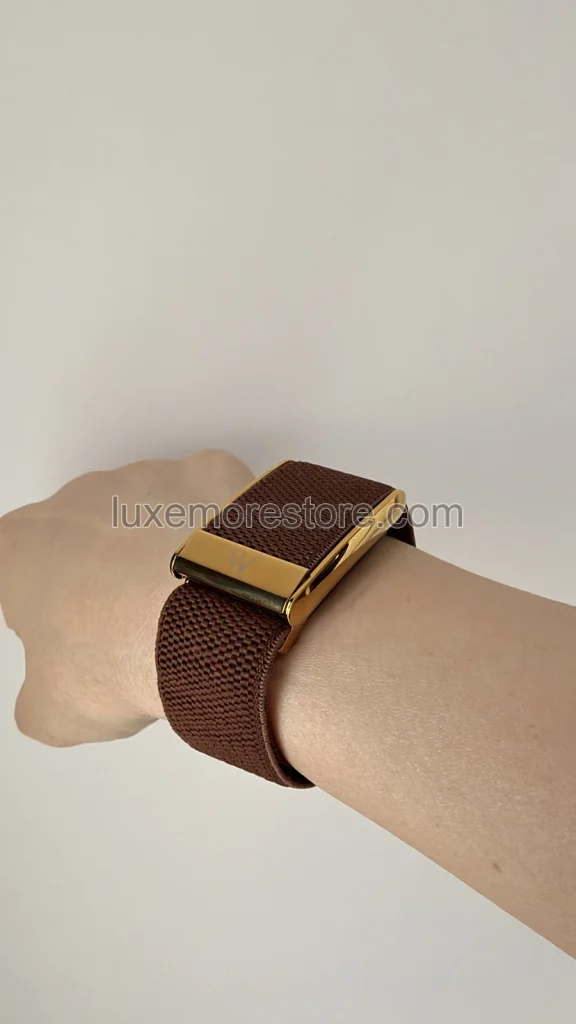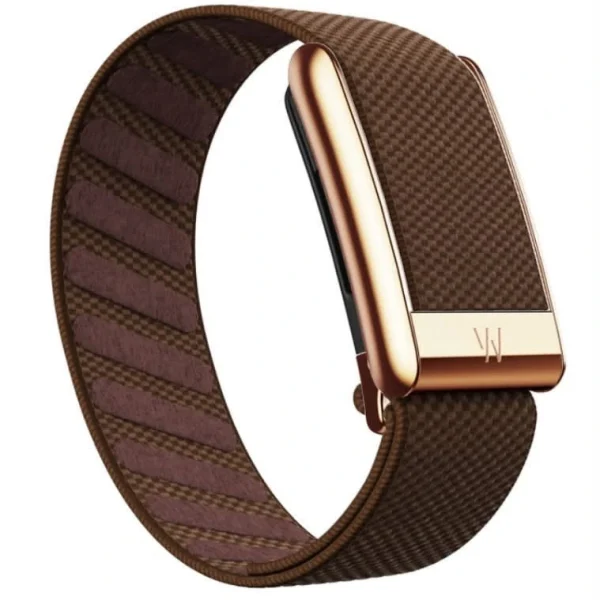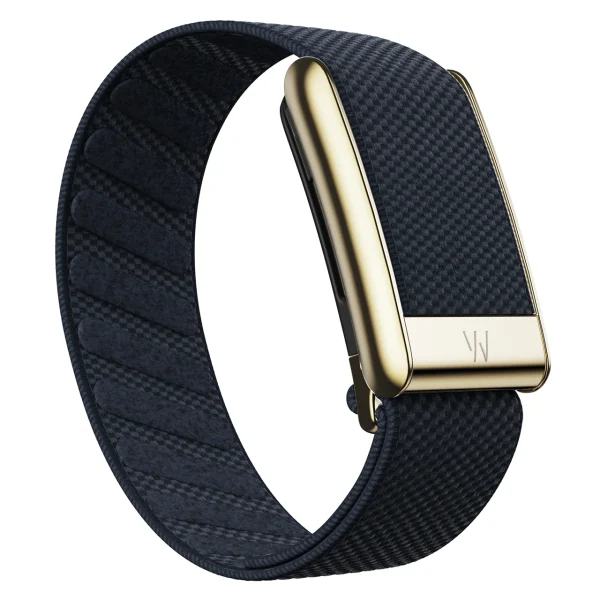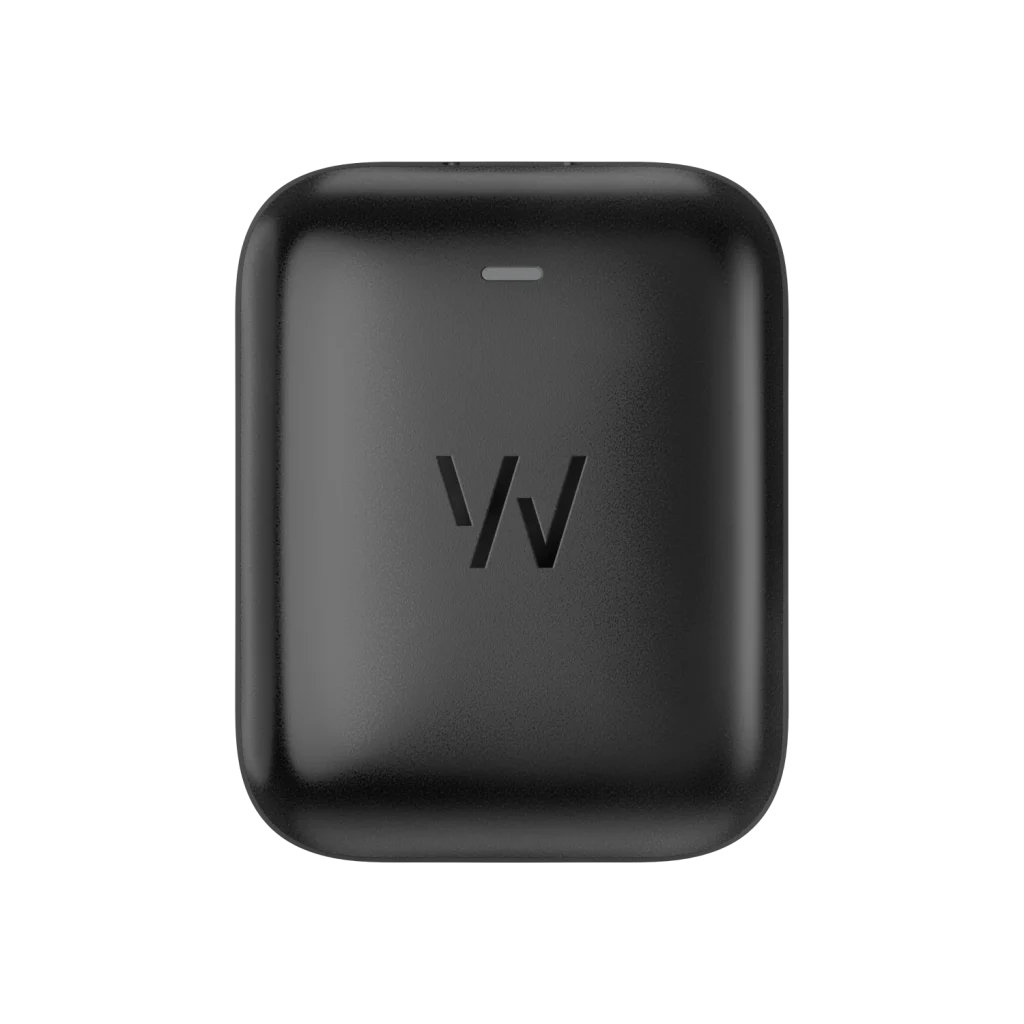
Wireless PowerPack for WHOOP 5.0 / MG. WHOOP product imagery; this is not the Basic Charger. Image: WHOOP
Start by separating the symptoms. If the device gives no light response, check the power supply and charger first. If the device still responds but its data is missing from the app, work through the connection checks. A battery percentage stuck on the screen does not by itself prove the battery has failed: the latest data may not have synced yet. [1][2]
Check which WHOOP model you use first
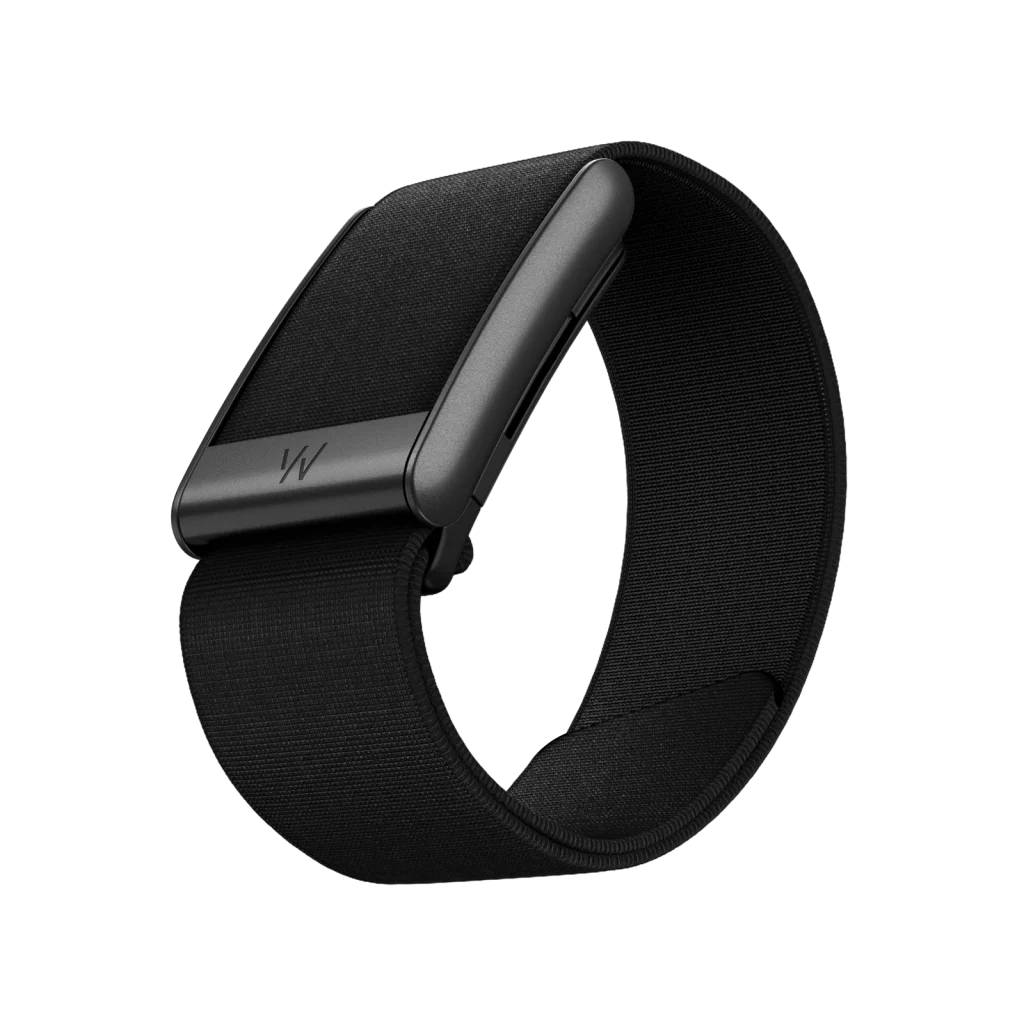
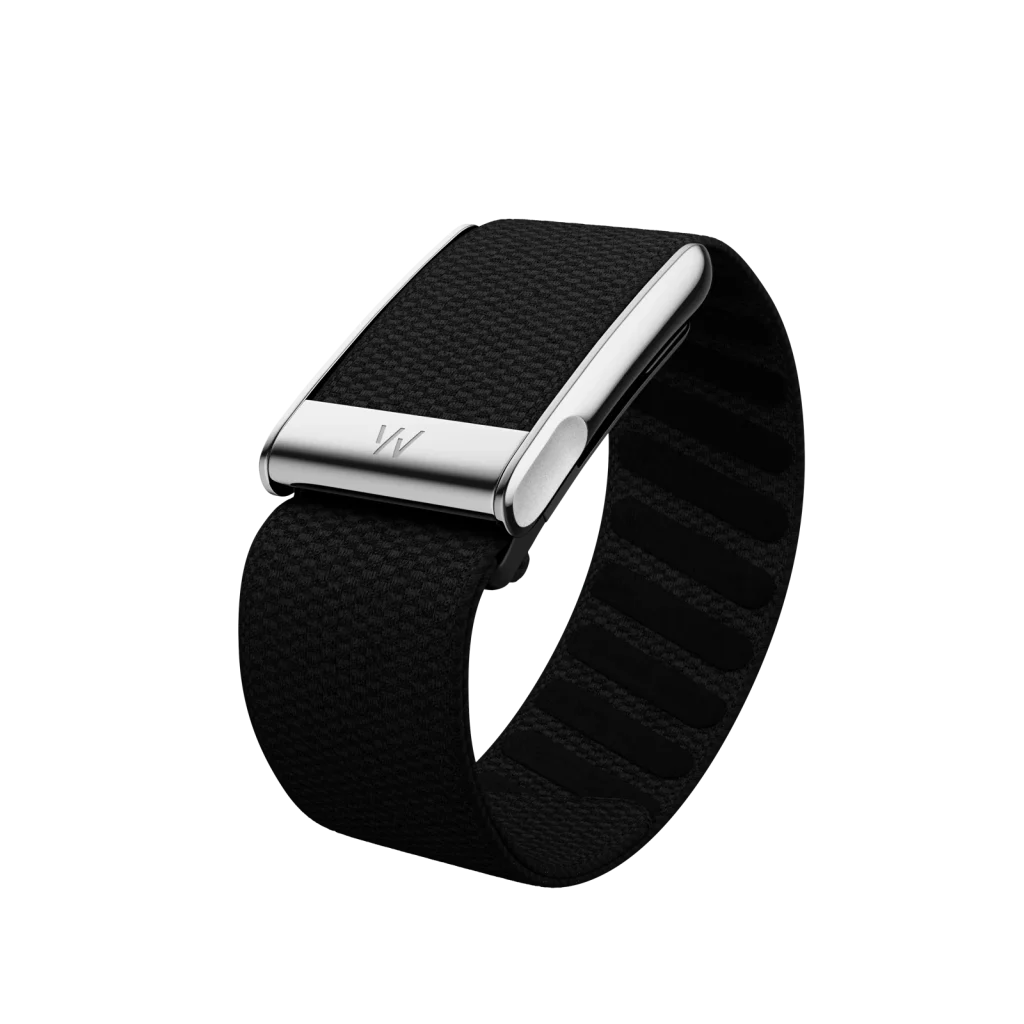
WHOOP 4.0 requires its 4.0 Battery Pack. WHOOP 5.0 and MG can use the Basic Charger or Wireless PowerPack designed for those two models. The 4.0 charger cannot charge a 5.0 or MG. Do not force it on, even if the chargers look similar. [1]
The battery in the sensor and the battery in its charger are separate. Charge the Battery Pack or Wireless PowerPack before using it to charge WHOOP. The Basic Charger is wired and needs to remain connected to a power source while in use. [1]
No charger lights? Start with the cable and power source
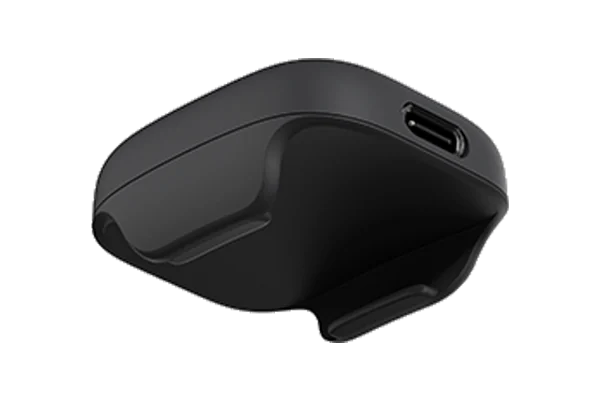
Check that the USB-C port is clean and dry, then make sure the cable is firmly connected at both ends. WHOOP specifies using the charging cable supplied with the device. If there is still no light response, try a different power source. [1]
If you are setting up a new WHOOP 5.0 or MG and double-tapping the PowerPack produces no light, the setup guide says to charge the PowerPack for 15 minutes before attempting to pair. [4]
If the charger still shows no lights after those checks, contact WHOOP Support rather than opening the accessory or continuing to force it into use.
Charging demonstrations from WHOOP
The charger lights up, but WHOOP's battery does not rise
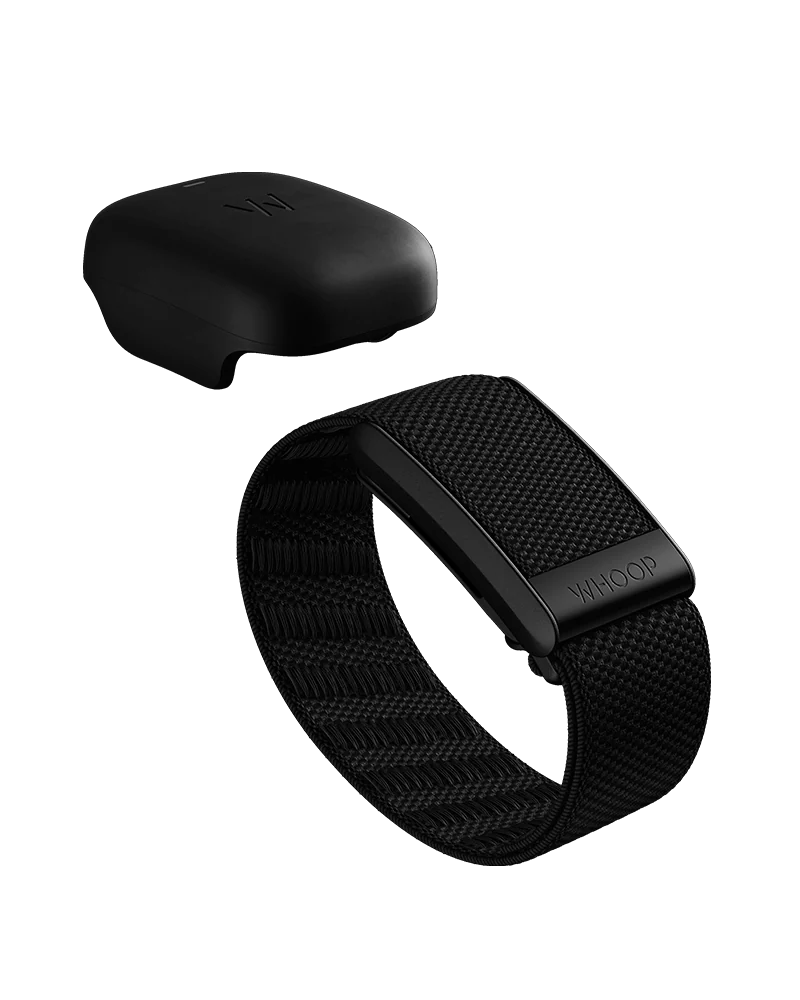
Remove the charger and attach it again. Make sure it is fully seated, not tilted or stuck halfway on. Then check whether the battery percentage in the app is rising, rather than relying only on the lightning symbol. [1]
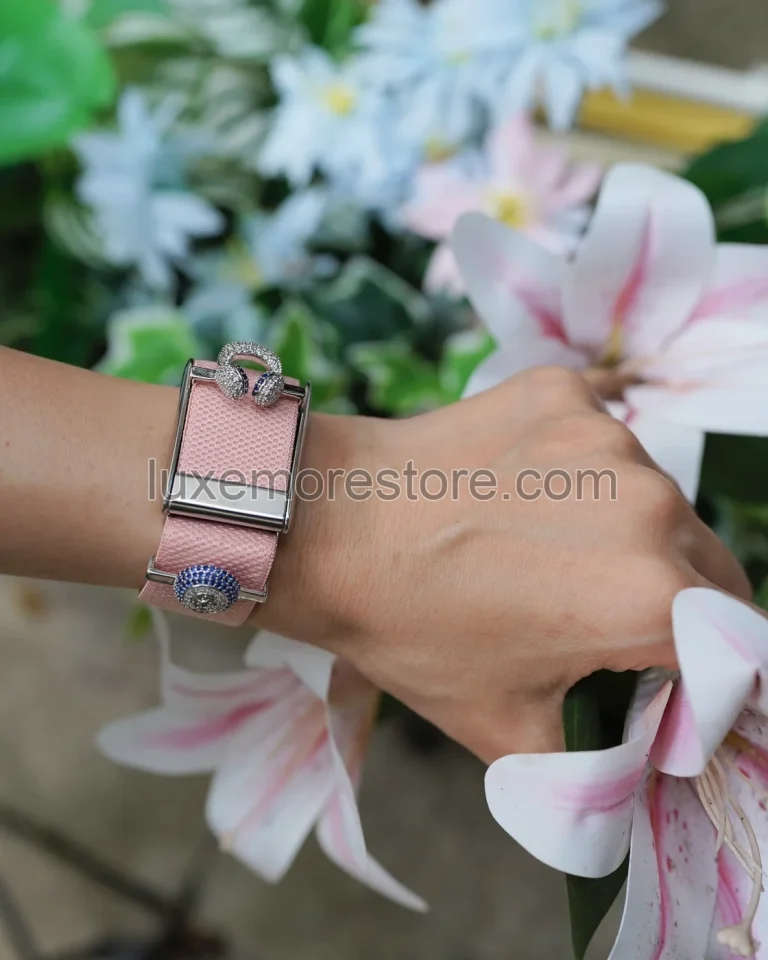
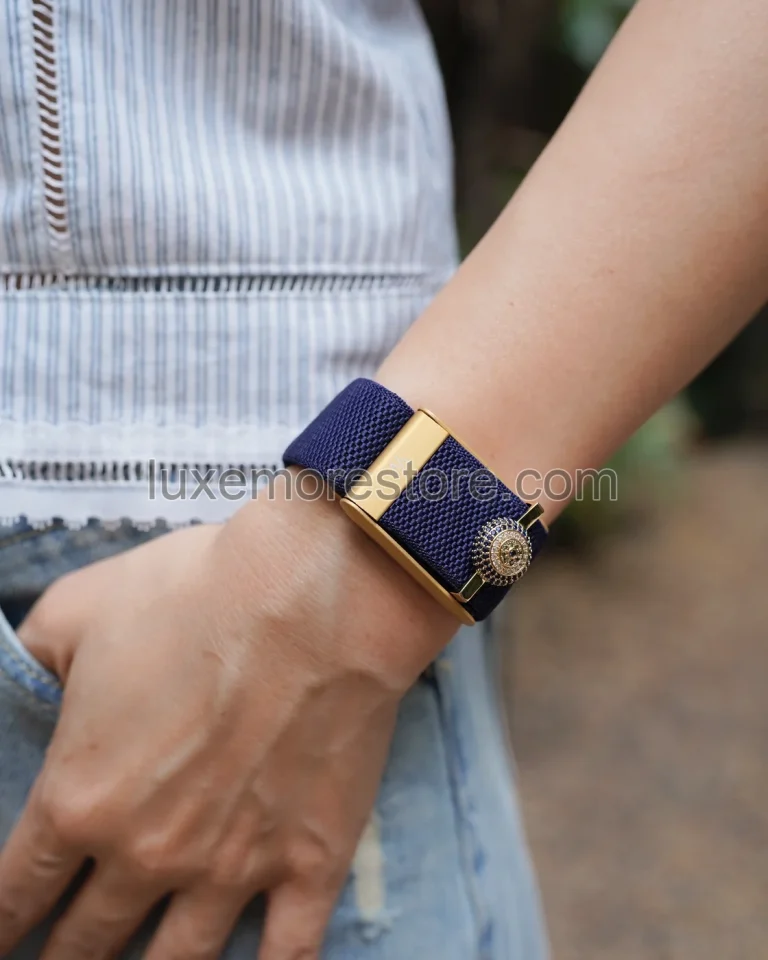
If you use WHOOP's Meridian band, switch to a charging-compatible band first. WHOOP's guide states that this band does not support charging. That guidance applies specifically to WHOOP's Meridian. For a third-party band, check the particular model rather than assuming compatibility from its appearance. [1]
If the app displays “Charging needs attention,” check the band you are using, remove and reconnect the charger, and check the battery percentage again. If it still does not rise, send the details to WHOOP Support. [1]
WHOOP 4.0 will not charge: does its Battery Pack need an update?
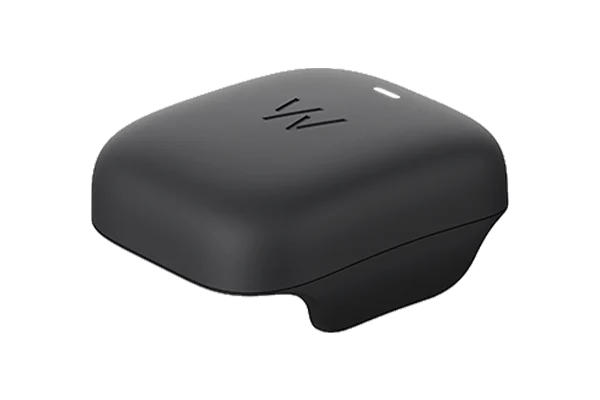
If a 4.0 Battery Pack is unresponsive, shows no lights, or will not charge the sensor, WHOOP provides the Battery Pack Updater to run diagnostics and update the pack's firmware through a computer. Download it from WHOOP's official support page and connect the cable directly to the computer's USB port rather than through a USB hub. [5]
This updater is for the 4.0 Battery Pack, not the Wireless PowerPack for 5.0 or MG. The newer PowerPack receives firmware updates through the WHOOP app, so the 4.0 procedure should not be used in its place. [5]
The sensor has lights, but the app cannot find WHOOP
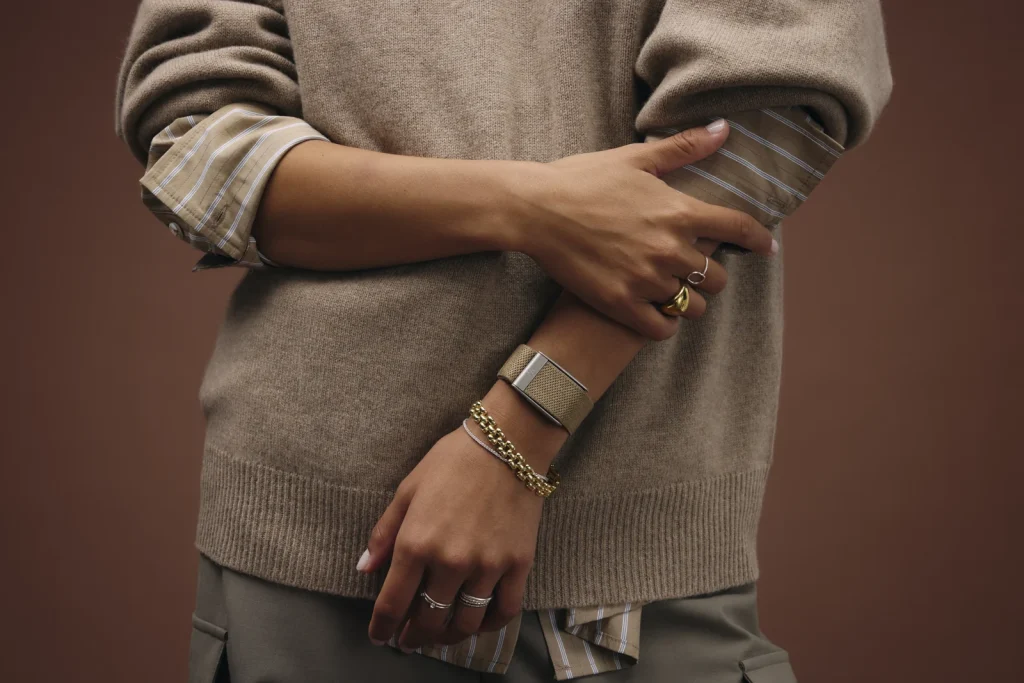
For first-time pairing, use the WHOOP app rather than starting a pairing attempt in the phone's Bluetooth settings. Open the app, sign in, and choose “Pair New Device,” following the instructions for your model. [4]
For WHOOP 4.0, slide a charged Battery Pack onto the sensor. The side light should flash blue to indicate that it is ready to pair. For 5.0 and MG, connect a powered Basic Charger or charged PowerPack to wake the sensor. A flashing blue light indicates that it is ready. [4]
Before trying again, check these points one at a time:
- Enable Bluetooth and allow the WHOOP app to use it.
- Keep the sensor close to the phone.
- On Android, check location services and the app's requested permissions too. WHOOP's setup guide specifies enabling location permission for pairing.
- Restart the phone and reopen the WHOOP app. [4]
If pairing still fails, try entering pairing mode manually. Take WHOOP off your wrist, wait for the green underside lights to turn off, and hold the sensor by its sides. Tap the top firmly and continuously with two fingers until only blue lights flash. Then open the app and go to “Device Settings” → “Advanced” → “Pair a Device,” and select your sensor ID. [8]
If this device was paired before but will not reconnect, the guide recommends closing the app, removing the previous WHOOP connection in the phone's Bluetooth settings, and restarting the phone before pairing again through the WHOOP app. Removing an old connection is different from initiating pairing directly in the phone's Bluetooth settings. [8]
If the sensor used to connect and the data is simply behind, open the app and allow it to sync first. Pairing a device and waiting for its remaining data to sync are different situations. [2][4]
Connected, but the data has not appeared
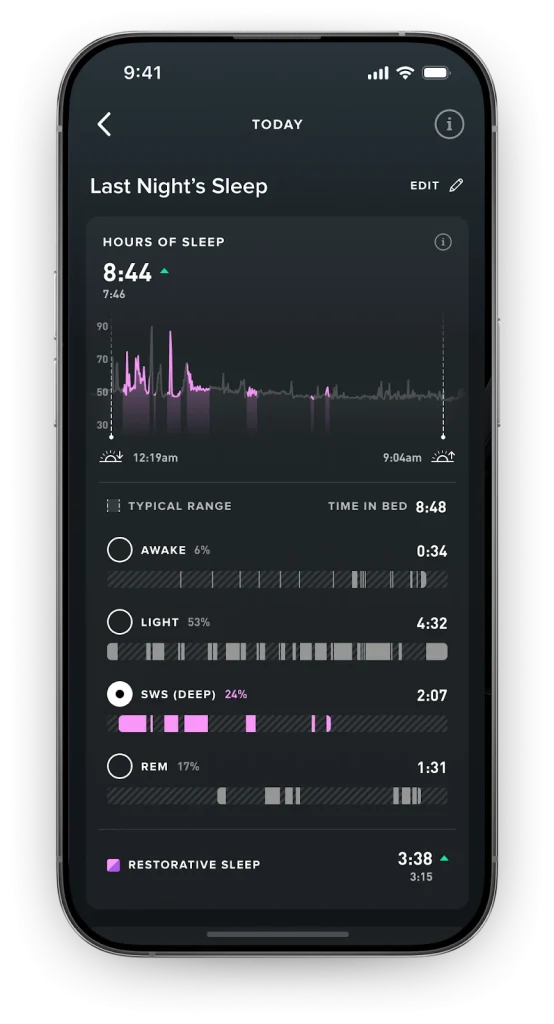
If old data remains on screen, do not immediately delete the app. Check that WHOOP is connected to the phone, then leave the app open to continue syncing. If this happens often, check whether the phone restricts WHOOP's background activity or whether power-saving settings are interfering with syncing. [2][6]
If the device connects but problems continue, try rebooting it through “Device Settings” → “Advanced” → “Reboot Device.” Keep WHOOP near the phone during the reboot. Menu names and positions may vary by app version. [2]
Check for app and firmware updates as well. For 5.0 and MG, WHOOP recommends updating the app first when both updates are available. [6]
When to stop troubleshooting yourself
If the charger becomes unusually hot, disconnect it and let it cool. Do not charge in direct sunlight or a hot location. If a different power source, reseating the charger, and connection checks leave the problem unchanged, contact WHOOP Support.
Before submitting a request, note the sensor model, charger model, light behaviour, and checks you have already tried. Take a photo or short video showing the problem and include a screenshot of any error message. This describes the issue more clearly than simply saying “WHOOP does not work.”
LUXE MORE is an independent retailer of third-party accessories and is not affiliated with, endorsed, sponsored, or officially appointed by WHOOP. For problems with the sensor, charger, or membership account, contact WHOOP Support directly.
Sources
- [1] WHOOP: Battery Pack and Charging Overview
- [2] WHOOP: Missing Data
- [4] WHOOP: Setting Up Your WHOOP
- [5] WHOOP: How to Use the Battery Pack Updater
- [6] WHOOP: WHOOP App Minimum Software Requirements
- [8] WHOOP: WHOOP Sensor Pairing Guide
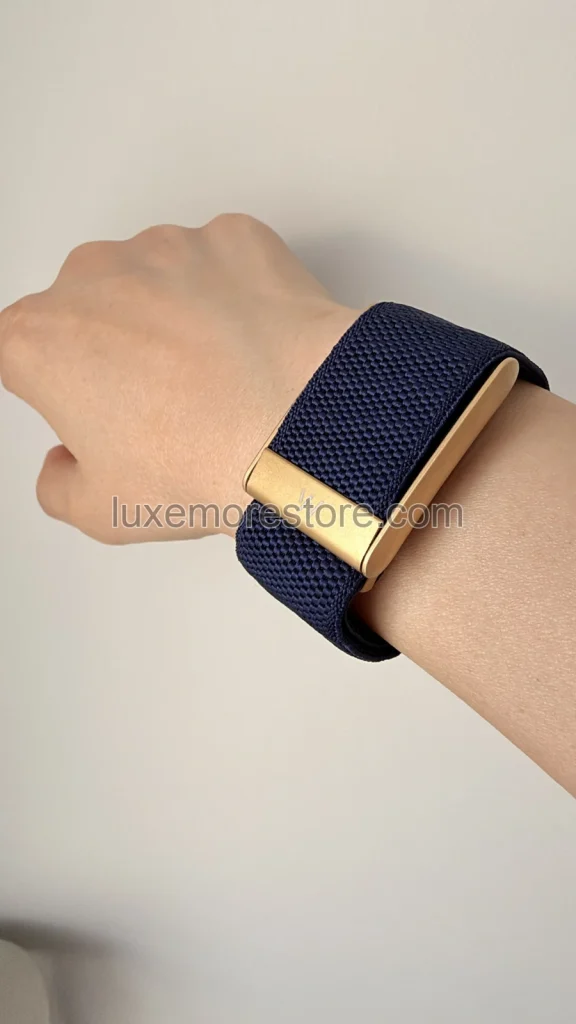
Actual LUXE MORE band photographs